Amazon

Monday, 19 March 2012

Best 13-inch laptops: which is right for you?


The 13-inch laptop has gone on leaps and bounds recently, thanks massively to Intel's Ultrabook specifications.

At the moment, all Ultrabooks feature 13-inch screens, with 14 and 15-inch models incoming later this year.

In many ways, a 13-inch laptop is the perfect size for a portable PC; they're not as fiddly and squint-inducing as netbooks, but not as heavy and awkward as a full-on notebook.

The price of these machines is higher than netbooks though, so if your wallet's feeling the strain we recommend you take a look at our guide to the 15 best netbooks in the world today.

Or for a broader view, look at our 20 best laptops in the world today. But whatever you do, read on to find our favourite 13-inchers of the past few months - all in price order.

1. HP Envy 13 - £533


HP's Envy cost a whopping £1499 when we reviewed it, and we rightly criticised it for being far too expensive. Now that price has dropped to under £1000, making it a worthy competitor to Apple's 13-inch MacBook. Like the MacBook, it sports a quality build, lozenge-type keys, a lovely screen and a dedicated graphics card. Unfortunately, battery life isn't that great, but if you fancy buying something of Apple's inscrutable quality without the Apple branding, look no further.

2. Acer Aspire S3 - £680

Acer's take on the Intel Ultrabook specifications may not be quite as skinny as half-sister company Asus' Zenbook, but the price is certainly slimmed down. Packed with a Core i7 processor and 4GB of memory, the Aspire S3 proved a capable multi-tasker able to run powerful photo and video editing software. The keyboard is impressive for such a slim machine, and we were impressed by just how quietly it ran. 149 minutes of battery life won't see you taking it on extended trips, but the price and form factor makes it an ideal first venture into the Ultrabook market.

3. Lenovo IdeaPad U300S - £893

Sitting firmly between other Ultrabooks in terms of both price and performance, Lenovo's IdeaPad still proved that Intel's specifications make for versatile and powerful little lappies. Lenovo has prioritised business use on the IdeaPad, so you'll find a comfortable keyboard and matt screen. While the latter may not be ideal for photos and movies, it's perfect for working outside or in the glare of the sun. Long battery life and low weight make it great for long business trips, and while the design is nothing special it's still head and shoulders above non-Ultrabook laptops.

4. Toshiba Satellite Z830-10U - £900

Toshiba's Ultrabook somehow includes a sub-woofer, an ethernet port and three USB ports in a package that weighs a mere 1.1kg and is just 16mm wide at its thickest point. The miracle of micro-engineering comes at a cost, though: it's one of the flimsier Ultrabooks we've looked at. It's not quite as powerful as other Ultrabooks we've looked at, although it proved perfectly adequate for photo editing and was quick to boot up and shut down. Battery life impressed, too, and we reckon it'll last a full day of real-world use.


5. Apple MacBook Pro 13-inch (Late 2011) - £942

Intel's Ultrabooks may have Apple's 13-inch ultraportable firmly in their sights, but they still have quite a fight on their hands. The MacBook Pro's handsome looks make everything else look a little bit pathetic, and the buttonless touchpad is one of the best we've ever seen. This update includes a faster processor and larger hard drive, on top of standard Mac-centric luxuries like a backlit keyboard, an excellent screen and an HD webcam.

6. Asus Zenbook UX31 - £1,000

An incredible introduction to Intel's Ultrabook specification, Asus' Zenbook is a draw-droppingly well-designed piece of kit. It draws favourable comparisons to Apple's MacBook Air, with an ultra-slim form factor (just 17mm at its widest point when closed) and distinctive concentric design on the lid. Add to this powerful components, long battery life and excellent sound, and you've got an immensely capable little laptop. The fact that the biggest problem we had was with the trackpad buttons says it all here, really.

7. Dell XPS 13 - £1,000

The Dell XPS 13 makes its debut in March and it looks like a cracker. The first thing that strikes you about the XPS 13 is how compact it is. Despite it being a 13-inch display, the 31.6 x 20.5 cm footprint is narrow and Dell makes no secret of its desire to be smaller than the 13-inch MacBook Air but with a similar screen size. It's thin, too, with a 6-18mm footprint and is a gorgeous-looking device. Our previous Ultrabook design best has to be the Asus Zenbook but the Dell XPS 13 really cuts it. It looks the part and feels it too at 1.4Kg.

8. Samsung 9 Series - £1,300+

Although we've reviewed the old model - check out our Samsung 9 Series review - we got hands on with its successor at CES 2012. The original Series 9 was one of the world's thinnest laptops, but Samsung has managed to shave another 4mm from its size-zero body, and the updated 13" model measures just 12.9mm when closed. The 15-inch version measures just 15mm, and one certainly gets the impression that Samsung wants to prove a point to the Ultrabook crowd. Duralumin, the tough alloy used on the original model, has been axed - possibly because it was prone to scratches - and replaced by standard aluminium, which feels much more resilient, and should stand up to contact with other items in your bag.


9. Sony VAIO Z Series - £1,931

Just under £2,000 is a lot to spend on a laptop, especially one so small. But this Sony VAIO is basically a desktop in a tiny laptops' clothing, and it includes a proper desktop Core i7, 6GB of DDR3 RAM and an Nvidia GT 330M graphics chip. You needn't worry about this beefy setup draining the battery, either: we got a decent 285 minutes out of it. It's all wrapped up in VAIO's exquisite style and rugged build quality, and the screen is a sight to behold. As we said in our review, "this is easily one of the best laptops you can currently buy."

Source -

Does the new iPad have a heat problem?


Heat has come up as an issue with previous generations of iPads. So, that's not news. But the new iPad may have, in select cases, its own unique heat problems.

User forum postings (here and here) and a report seem to point to heat as an issue for select users.
The problem area--based on forum links above--seems to be a hot-spot in the corner of the unit.
In the worst case, the iPad shuts down and a message pops up, saying "the iPad needs to cool down," according to a Next Web report (link above).

That seems to be extremely rare, however. And one user who claimed to have the problem was using it in direct sunlight. Let's be clear: that can cause problems for any electronic device.
The third-generation iPad integrates both a larger battery and a faster (and reportedly larger) chip. Those are significant differences from the iPad 2. So, it inevitably gets warm. And like all Apple iOS mobile products it does not have a fan.


Anecdotal reports on launch day have pointed out that the new iPad can get a little toasty.
But this issue has come up with both the iPad 1 (here) and iPad 2 (here). There were reports of the "cool down" message on the iPad 2 also.
Moreover, note that user comments sometimes confuse overheating with the unit just getting warm.
At a suburban Los Angeles Apple store, a staffer confirmed that the new iPad gets warmer than the iPad 2. He attributed that to the battery.
The operating temperature range is listed on the iPad's spec page as 32 degrees to 95 degrees F (0 degrees to 35 degrees C).
Apple representatives did not immediately respond to a request from comment.
Updated at 7:15 p.m. PDT: clarifying "all iPads" to mean previous generations of iPads. In other words, the topic of heat has come up with each previous generation of iPad. And adds comments from staffer at Apple store. Also clarifies that the warm area is "a corner" of the unit instead of a specific corner, as that is not clear at this time.


Source :- http://news.cnet.com

Lenovo plans to be first to make a Windows 8 tablet


Windows 8 won't be ready for consumers until fall, but that's not stopping hardware makers from fighting to be first in line to build hardware for Microsoft's new operating system.
Lenovo is planning to be the "first to market" with a Windows 8 tablet, The Verge reports.
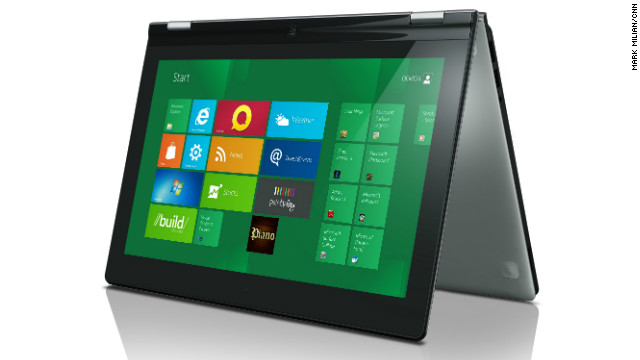
Citing a "source," the report says Lenovo is planning to be ready to ship the device in October and that it will have an Intel chip, so it clearly won't be a Windows-on-ARM device. Other than that, there aren't any details on exactly what the machine will be, although given those basic criteria (tablet, Intel, Windows 8), there's at least one suspect: the IdeaPad Yoga.

Lenovo showed off the Yoga at CES earlier this year, and it got a lot of attention due to its unusual form factor: a laptop with a keyboard that folds over completely to transform it into a tablet.

Mashable: How windows 8 tablets could challenge the ipod

Michael Dell had also said publicly that Dell would offer a tablet when Windows 8 launches, and Nokia recently confirmed months of speculation that it was working on a tablet as well. There have also been reports that HP and Asus are working on Windows 8 tablets as well.
A key differentiator among Windows 8 tablets will be whether they're based on a traditional PC chip or one that uses the ARM architecture.

While the new version of Windows has been engineered to be near-identical on both, ARM-based Windows devices are going to be "end-to-end" devices (meaning Windows would come fully integrated) and have a few special features, like an ultra-low-power mode. However, most legacy apps won't work on them.

Are you interested in Windows 8 tablets? What would you like to see in them? Let us know in the comments.


Source :- http://mashable.com

Tuesday, 13 March 2012

Customize the Command Prompt in Windows 7

You can customize the appearance of a Command Prompt window, changing its size, font, and even colors. And you can save these settings independently for each shortcut that launches a Command Prompt so that you can make appropriate settings for different tasks.

To customize a Command Prompt window, you make settings in the Properties dialog box that you can reach in three ways:

Right-clicking on a shortcut for a Command Prompt provides the Properties option. Changes you make here affect all future Command Prompt sessions launched from that particular shortcut.

Clicking the Control menu icon in a Command Prompt window offers access to the Properties dialog box. (If Command Prompt is running in full-screen mode, press Alt+Enter to switch to window display.) Changes you make here affect the current session. When you leave the properties dialog box, you’ll be given the option of propagating your changes to the shortcut from which this session was launched. If you accept, all future sessions launched from that shortcut will also use the new settings.

Clicking the Control menu icon in a Command Prompt window and choosing Defaults from the Control menu lets you make changes that will not affect the current session but instead will affect all future sessions (except for those launched from a shortcut whose properties have been customized). These changes also affect future sessions in character-mode, MS-DOS-based applications that do not have a program-information file (PIF) and do not store their own settings.

Tweaking Edit Options


The Options tab offers a variety of options that affect how your Command Prompt window operates. Notably, you can enable or disable QuickEdit Mode. This option provides an easy way to copy text from (and paste text into) Command Prompt windows with a mouse. If you don’t select QuickEdit Mode, you can use commands on the Control menu for copying and pasting text. You can also enable or disable Insert Mode. This setting (which is on by default) allows you to insert text at the cursor position. Clearing the Insert Mode check box setting will allow you to overstrike characters instead.

Note that when you use the third method, choosing Defaults, you also get the option to enable and disable the AutoComplete option, which is enabled by default.

computer repair

Source:- http://technet.microsoft.com

Ways to Have Fun with a Graphics Tablet and Mac OS X

If you have never used a graphics tablet with Mac OS X, you have missed out on some enjoyable ways to work with Mac OS X. A graphics tablet and Mac OS X can let you write on your screen just as you might on paper, control and access menu items, draw with better precision, and replace your mouse.

Use Handwriting Recognition

If you have a graphics tablet that is compatible with Mac OS X connected to your computer, you can turn on handwriting recognition from a preferences pane in the Mac OS X System Preferences. One thing you can do with the System Preferences Ink pane is to define your handwriting style in terms of letter spacing. You can also enable handwriting recognition in all programs, define how to use the stylus pen that comes with a graphics tablet, and designate the font to use with handwriting recognition.


Use Gestures

Mac OS X lets you use your graphics tablet for selecting menu options without actually moving the pen to the menu bar. Instead you can write special symbols, called gestures, on your tablet. The Gestures tab pane on the Ink preferences pane in the Mac OS X System Preferences lets you see the gestures Mac OS X recognizes and you can activate or deactivate any of them.


Use a Graphics Application

If you enjoy using graphics applications for editing photos or for creating your own artistic masterpieces, you will love owning a graphics tablet. Many graphics applications for Mac OS X let you control most of the features of the software using a graphics tablet and pen instead of a mouse. You will quickly find that you can control the lines, curves and other items you draw with far better precision when you are using a graphics tablet and pen. If you own a Wacom tablet and install Wacom's software, you will have a new preferences pane that will give you even more control over how you use the pen and tablet in graphics applications.


Replace Your Mouse

When you get tired of using your mouse, you can use a graphics tablet and pen to replace your mouse.

Use a Third-Party Application

There are a few special shareware applications available for Mac OS X that can make using a graphics tablet and pen even more enjoyable. One such application is SketchBox.

computer repair

Source - http://cjrtools.org

Ways to Enjoy Screen Savers on a Mac

Updated for Snow Leopard

Usually people only use screen savers when a computer is idle, but some screen savers are so enjoyable that they can provide visual relief from work sessions. In this list, I briefly describe some ways to enjoy screen savers.

Use Apple's Screen Savers

Apple provides some beautiful screen savers with Mac OS X. To view them, open System Preferences, click on the Desktop and Screen Saver button and select the Screen Saver tab. On the left side is a list of all the screen savers on your computer. My favorite Apple screen saver is Beach.

Use an iPhoto Album

Viewing photos of your children or special pet can be the perfect way to ease work-related stress. Just select the iPhoto album in the list on the Screen Savers preferences pane and let your little one relax you.

Change View Options

Mac OS X has some new display options for some of the screen savers. If you see three small symbols under the screen saver preview with the words "Display Style" under the symbols, you can choose how to view your screen saver. Your options are:

Regular view (symbol on the left) - The screen saver will move slowly around the desktop, completely covering it with one image.
Collage view (symbol in the center) - Sections of the screen saver image will appear on the screen at different angles, and each new image will be placed on top of the previous ones.
Mosaic view (symbol on the right) - Small sections of different images from the screen savers or from images in your folders will be combined to form a mosaic image.

Change Display Options

You can set display options for many screen savers. First, select the screen saver you want from the list of screen savers in the Screen Savers preferences pane. Next, click the Options... button. A pane will open and you will have several options that will vary depending on the screen saver.

Find Free Screen Savers

There are some entertaining free screen savers that you can download and add to the Screen Savers folder in your Users folder. To find more screen savers, go to MacUpdate and search for "Screen Savers."

Computer repair

Source:- http://cjrtools.org

Is Quicken for Mac Compatible with Mac OS 10.7 Lion?

Will Quicken for Mac 2005, 2006, or 2007 work on the latest Apple operating system, OS X 10.7 Lion?

Quicken for Mac 2005, 2006 or 2007 will not work on Lion. However, a Lion-compatible version, Quicken Mac 2007 is now available.

Quicken Essentials for Mac will still continue to work on OS X 10.6 Snow Leopard or later, including Lion. If you are using Quicken Essentials, make sure you are on the latest Quicken Essentials patch version for full compatibility.

Why will Quicken for Mac 2005, 2006, or 2007 not work on OS X 10.7 Lion?

Quicken for Mac 2005, 2006 and 2007 were originally built for the older PowerPC architecture, and were able to run on newer Intel-based Macs due to an Apple technology called Rosetta. As of OS X 10.7, Apple has discontinued support for Rosetta. Lion Compatible Quicken Mac 2007 is a re-engineered version of Quicken for Mac 2007 that will work on OS X 10.7 Lion.

What are my options if I don't upgrade to OS X 10.7 Lion?

If you do not plan on upgrading to OS X 10.7 Lion, no action is required. You can continue using Quicken for Mac 2005, 2006 or 2007 as is.

What are your plans related to personal finance solutions for Apple customers?


We are committed to supporting Apple products and our Mac customers. We are actively working on a personal finance solution for the iPad, as well as continuing to deliver the highly rated Mint.com iPhone application. In addition, we are evaluating options for Quicken Essentials for Mac.

computer repair

Source :- http://quicken.intuit.com/

Saturday, 10 March 2012

Mac Wireless Problems? Guide to Troubleshooting Airport & Wireless Problems on your Mac

Mac’s are amazingly reliable and have few problems, but it’s not incredibly unusual to run into problems connecting to a wireless network. If you’re having problems connecting your Mac wirelessly to an Airport or other WiFi router, check out this guide and try out these troubleshooting tips to fix your wireless internet connection.


Mac Wireless & Airport Connection Problem Troubleshooting: The Basics

* Turn Airport on & off – You can do this via the Airport menu bar or from the Network Preferences. This is the first thing you should try when troubleshooting Mac wireless problems.

* Reset your router – This is the second thing you should try doing. You can fix a surprising amount of wireless problems just by resetting the airport/router. All you need to do is turn the thing off for a few seconds and turn it back on.

* Reset your Cable/DSL modem – You’ll usually want to reset this in combination with your wireless router. Reset this first so the DHCP information will be pulled to the wireless router properly.

* Change Wireless Channels – sometimes your router’s wireless broadcast channel will interfere with a neighbors, be sure you have your router set to a unique channel. Even if it’s a weak signal there can still be interference.

* Make sure Wireless/Airport card software & firmware is up to date – This is usually done just by going to the Software Update menu, if there are any updates available for your Mac or Airport, install them.

Mac Wireless Troubleshooting: Intermediate

* Change wireless security protocol – You shouldn’t be using WEP anyway for security reasons, but sometimes changing from WEP to WPA/WPA2 or WPA to WPA2 can resolve wireless connection difficulties.

* Make sure router firmware is up to date – Check your router manufacturers website for firmware updates, if there are any available, install them.

* Delete and recreate connection – Try deleting and recreating/reestablishing the wireless connection, sometimes a setting can be corrupted and this may fix it.

* Create a new Network Location – Similar to the above suggestion, try creating a new and different wireless network location to see if it resolves the connection problems.

* Change DHCP auto settings to manual – sometimes there is a problem with the DHCP server, and if you manually set an IP address on the network you can be fine. Remember to set the IP to a high number so it wouldn’t interfere with other DHCP machines. As long as you have the subnet mask, router, and DNS settings configured manually as well, this shouldn’t be a problem.

* Disable “Wireless G/N/B only” mode – Sometimes a setting is selected that only broadcasts your wireless signal in Wireless B, G, or N mode (depending on the routers abilities). If this is set, try disabling it.

* Flush the DNS cache – Launch the Terminal and enter the following command onto one full line within the Terminal:

Mac Wireless Connection Problem Troubleshooting: Advanced

* Zap the PRAM – Reboot your Mac and hold Command+Option+P+R during restart until you hear another chime, let the Mac boot as usual.

* Delete Wireless Config files – Delete com.apple.internetconfigpriv.plist and com.apple.internetconfig.plist files from ~/Library/Preferences and reboot

* Trash your home directories SystemConfiguration – Remove all files within ~/Library/Preferences/SystemConfiguration/ and then reboot your Mac.

* Reset your Mac’s System Management Controller (SMC) – For MacBook and MacBook Pro’s: Shutdown the MacBook/Pro, remove the battery, disconnect the power, hold the Power Key for 15 seconds. Replace the battery, reconnect power, and zap the PRAM and wait for 2 chimes before letting the keys go. Let boot as usual.     DDCE4S7EXYRH

Computer repair

Source - www.osxdaily.com

Wednesday, 7 March 2012

tips for windows users switching to mac


Many Windows users want to move over to the Apple Mac OS but fear that the switching process may be hard.

This article is not about why you should switch to Macs, but rather, how to do it and to show you that there’s really nothing to it. I’ll guide you through the general process of switching to an Apple computer with some practical easy steps to follow.

Ask yourself why you want to switch

First, you should ask yourself why you’d like to change operating systems. If your only basis for switching operating systems is by way of second-hand experience, such as a TV commercial or advertisement, then you should definitely try a Mac firsthand to see if you like it. You should ask yourself why you want to switch.

If you’ve already tested a Mac–maybe through a friend who owns a Mac or through an Apple Store demo –it’s time to sit down and think about why your good old PC should be shut down. What benefits can a Mac bring to your workflow? Would you be ready to switch from a platform to another and learn a ton of new things?

Once you’ve found the motivation for switching, the actual process will be easier.

Choose a model

Now that you’ve made up your mind that you want to buy a Mac, you have to determine what model you’d like to go with.

Desktop or notebook?

First, you have to choose between a desktop computer or a notebook. In the Apple world, this means you have to choose between iMac/Mac Pro (desktops) or MacBook’s (which comes as a MacBook, MacBook Pro or MacBook Air).

You should consider your needs and what you’re going to do with your new computer to help you make the decision.

Look to friends, family, or Apple Store employees for guidance, but the best way is to just head over Apple.com and, with some patience, read the descriptions of each model to help you determine which one fits you.

Online store or retailer?

This is a personal preference. Whether you’d like to go out and buy it from a retailer, or simply wait for it to arrive at your house is up to you. The quality of the service will still be the same.

Declutter your workspace

You heard that right, you have to do some extra work to start your new computing life. Mostly, you have to trash all the files, paper and junk that are hanging around on your desk and hide those cables. Macs don’t like clutter.

Forget about your old operating system

Now, don’t get me wrong: you shouldn’t forget everything; you should just forget how you worked on Windows (or your previous operating system). The way you used to browse files in Explorer, the Start Menu and the taskbar will be different; that’s neither a good nor a bad thing, but rather, a different thing.

Be open to learning new things, new ways to use a computer, and a different way of doing certain computing tasks. However, although the Mac OS is different from other operating system interfaces, the basic computing concepts are still there.

Get some basic knowledge

This is essential: you’d better learn the basics of the Mac OS before switching from Windows to Snow Leopard. One of the best places to go to, even before you get an Apple Mac, is the Apple Support section. There is also a host of video tutorials on the site as well about Mac Basics. You can also look to YouTube for Mac OS tutorial videos.

A good practice is also purchasing magazines about Apple products and posting on Apple-related forums. In this way, you’re getting ready to the switch in the best way possible: knowing what you’re going into.

Clean up your previous PC

Before the switch, it’s always good practice to clean up your PC: delete the old stuff you don’t need anymore, run a virus/malware scan, and uninstall programs.

Why do this? Maybe you’ll still need your PC in the future, and you can think of this as a purging or spring-cleaning session: in with the new, out with the old.

This is also a preparatory step for backing up your important files.

Choose the files to backup

Obviously, you’d want to back up some files from your PC: it could be work stuff or maybe your digital music library. It’s always a good step to have a back up in case something in the importing process goes wrong.

Choose which files you want to keep: backup files you know you’ll need, everything else can be deleted.

Backup solutions

To back up your stuff, you can use an external hard disk or an online service.

For online solutions, you can use services like Dropbox or Box.net. There is a good comparison table of online back up solutions on Wikipedia that you should check out if you’re going this route.

Set up the Mac OS

The installation process of Mac OS is very simple and straightforward: it will only require you to type your account name and password, choose a time zone, and other minor stuff. No additional knowledge required.

Play around

Here comes the fun part. Once you’ve installed Mac OS and have logged onto your new account, a new world will open to you: the system is now yours.

Now it’s time to play around; learn to launch applications in the Dock, get used to the menus in the menu bar, and assign shortcuts to Exposè and Spaces.

Choose a Web browser

There are dozens of browsers for the Mac OS, but usually the choice is between Apple Safari and Mozilla Firefox. Safari is Apple’s default browser – it’s one of the fastest browsers available right now and has an elegant and uncluttered interface.

On the other hand, Firefox is one of the most popular browsers out there thanks to its decent speed and extensibility. I highly suggest that you use Safari (well, mostly because it’s the only one who comes preinstalled in Mac OS, so you’ll have to begin with Safari) for the first month and see if it fits to your needs.

Then, if you really can’t stand it, you can try other alternatives like Firefox or Opera.

Install some must-have apps

Now that you know the basics, you’ll want to try some 3rd-party apps for the Mac.

Here’s a list of seven apps you should consider installing.

1Password: With 1Password, you can save logins, passwords, secure notes, bank accounts. If you need to secure your data, 1Password is the way.

Dropzone: an application that sits in your Dock waiting for you to drop stuff over it. Once you’ve dropped something onto it, it allows you to perform a large variety of actions like "Zip & Email" or "Upload to Twitpic". Dropzone greatly enhances the Mac OS Dock.

NetNewsWire: an RSS reader that integrates with Google Reader. In my opinion, this is the best available on Mac.

Tags: as the name suggests, Tags lets you tag stuff. The cool thing is, you can tag everything on your Mac, from mail messages to videos.

Caffeine: a menu bar app that prevents your Mac from going to sleep.

Adium: a multi-protocol instant messaging app that supports MSN Messenger, Gtalk, Facebook, Twitter and much more. A must have communication tool.

Tweetie: the best Twitter client for the Mac. Supports multi-accounts, searches and has a stunning UI and smooth animations.

Computer repair
source : http://sixrevisions.com

Google is rebuilding Android Market

Google is rebuilding Android Market.


The Internet giant, looking to create a more comprehensive source for movies, apps, music, and e-books, is folding Google Music and Google eBookstore into one store, now renamed Google Play, according to Jamie Rosenberg, director of digital content for Google. The changes go into effect today.
Google Play marks a radical departure from Android Market, which has been a fixture of the company's mobile platform since the debut of Android more than three years ago. The move is a tacit admission that offering apps, games, and e-books--the main features of Android Market--isn't enough to remain competitive even as rival app stores spring up. Google Play is designed to break down the walls separating the company's disparate offerings, Rosenberg said.
"Google Play will become a single experience for users," Rosenberg said. "This creates a more powerful experience around Android and also increases opportunities for content partners" to interact with more of Google's offerings.

Busta Rhymes, the rap artist, helped Google launch Google Music in Los Angeles in November.
(Credit: Greg Sandoval/CNET)
It's a shocking branding shift, considering the resources and energy spent into building the Android name, which will live on as the brand for Google's mobile operating system.
The move is likely to appease critics who have argued that Google's approach to digital content is fragmented. Services that should blend well together often seem out of sync. One example of this is Google Music and YouTube's music videos.
When Google executives were pitching the idea of Google Music to the labels throughout much of 2010 and 2011, they spoke of closely integrating the service with YouTube's music videos, one of the bright spots in online music distribution. Yet the services never were combined.
The formation of Google Play means that music will no longer remain a standalone service, Rosenberg said.
While a phenomenally successful platform with broad adoption, Android Market has struggled to generate the kind of revenue Apple's App Store sees with its apps. Launched in October 2008, Android Market still lags far behind Apple in revenues, according to numerous studies. Last month, Distimo, a company that tracks data on app stores, reported that Apple's iOS App Store generated four times the total revenue of Android Market.
As a result, developers have resorted to changing their business models, relying on mobile ads instead of up-front payments. Others have embraced the "freemium" model, which consists of giving away an app with the hope that the user pays a small fee down the line, either for additional services or extra levels or weapons in a game. Research In Motion, which has a much smaller BlackBerry App World storefront, boasts that its app store is more profitable for its developers than Android Market.
Android's inability to generate significant revenue from content extended to Google Music, CNET reported two weeks ago. Music industry sources said Google Music had not met expectations on revenue or customer adoption. Following that report, others wrote that Google Music was actually losing customers.

Source - http://news.cnet.com

Tuesday, 6 March 2012

Adobe releases Lightroom 4 -- at half the price


Lightroom 4 lets people edit video with presets such as this an old-style sepia tone look.

Adobe released the fourth version of its Lightroom software today, adding video abilities and editing finesse while cutting its price in half.
Lightroom 4 costs $149 new and $79 as an upgrade, a big step down from the earlier prices of $299 new and $99 upgrade. That's going the same direction Apple has with its competing Aperture, though not as dramatically: an introductory $499 price, then a drop to $199, and in the App Store version now, $80.
Lightroom is geared for photography professionals and enthusiasts, especially those who want to ease the difficulties of shooting with higher-end cameras' raw photo formats but benefit from their higher quality. It lets people manage their photo catalogs, publish photos online or now in books, too.

At the heart of Lightroom 4 are new editing controls designed to let people get more out of their images, for example boosting shadowed areas without blowing out highlights. Several more adjustments can be made locally, too, including white balance, noise reduction, and shadow recovery.
I liked the new version's controls, which I've been using with the Lightroom 4 beta, but stay tuned for a full CNET evaluation.
Another major feature is support for some basic video editing, including an ability to import settings from a still shot to adjust the tones and color balance of an entire video. Photographers also can geotag images with location data using a built-in Google Maps interface.
Adobe also added some new performance and compression options to its DNG file format that make it somewhat more useful as an alternative to the hundreds of proprietary raw formats the software must support.
It's available online or for a limited time with free shipping--something some people might think seriously about given that the download is 384MB for Mac OS X and 719MB for Windows.
With Lightroom 4, the software no longer works on Windows XP. Minimum Mac requirements are OS X 10.6.8 or 10.7 with a multicore Intel processor or Microsoft Windows Vista SP2 or Windows 7 SP1 on an Intel Pentium 4 or AMD Athlon 64 processor. You'll also need 2 GB of memory and a 1024x768 or better display.

Computer Repair

Source: http://news.cnet.com

iGennie

Twitter Delicious Facebook Digg Stumbleupon Favorites More

 
Design by Free WordPress Themes | Bloggerized by Lasantha - Premium Blogger Themes | Walgreens Printable Coupons